
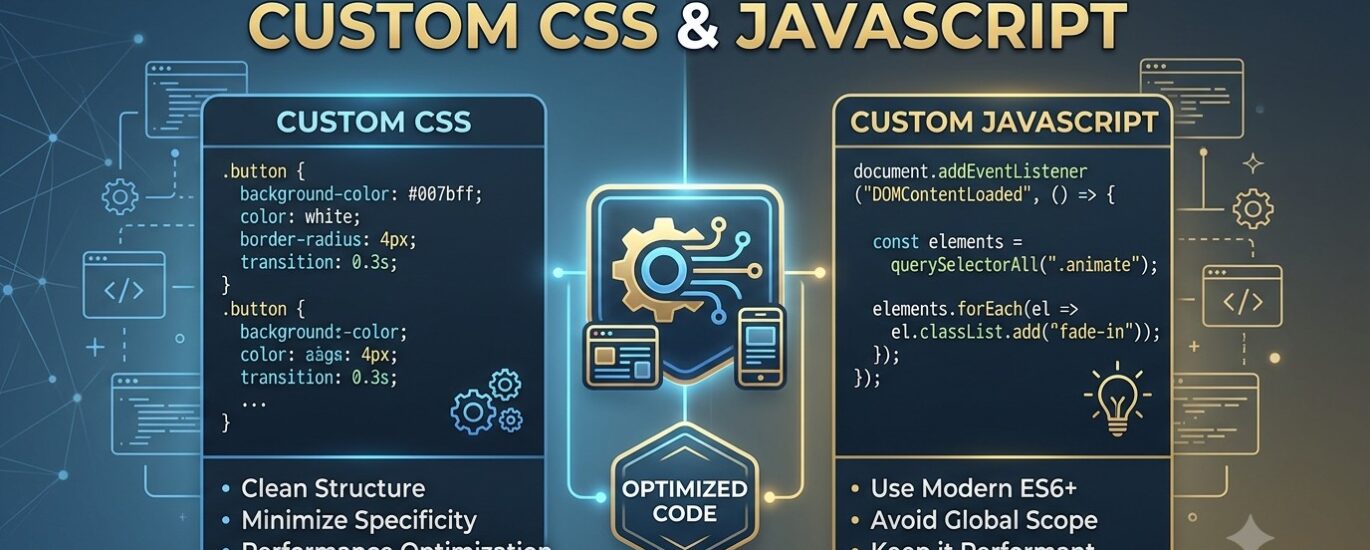
When customizing an online storefront or high-performance web application, standard theme options can only take you so far. To build a truly unique user experience, you will eventually need to write custom styles and custom client-side behaviors. Implementing these customized elements demands a high degree of precision. Adhering to the absolute Best practices for Custom CSS & JavaScript ensures your site remains highly responsive, visually stunning, and technically stable.
Adding poorly written scripts or unorganized style blocks directly to your live environment is a fast track to layout shifting, slow page load speeds, and broken elements. In this guide, we will walk you through professional strategies to safely write, test, and maintain your custom assets without sacrificing speed, security, or search engine visibility.
Why Custom Assets Require Strict Engineering Standards
When you modify the visual presentation layer (CSS) or the behavioral layer (JavaScript) of a website, you are interacting directly with how the browser parses and renders your content.
If your code is unoptimized, your site will suffer from performance bottlenecks.
[ Unoptimized CSS/JS ] ──> [ Delayed Browser Rendering ] ──> [ High Cumulative Layout Shift (CLS) ] ──> [ Poor SEO Rankings ]
By following professional development standards, you protect your site from three major issues:
- Performance Degradation: Heavy, render-blocking scripts delay your First Contentful Paint (FCP) and Time to Interactive (TTI).
- Cumulative Layout Shift (CLS): When custom CSS loads too late, elements jump around visually as the page renders, frustrating users and hurting your Core Web Vitals.
- Maintenance Overhead: Scattered code blocks inside your templates make it incredibly difficult to debug errors or update your parent theme later.
Best practices for Custom CSS & JavaScript: Writing Clean Stylesheets
Writing CSS that is easy to scale is about more than just making elements look right. It is about organizing your code so that it executes quickly and overrides default styles safely.
1. Avoid Excessive Deep Nesting and Complex Selectors
Browsers read CSS selectors from right to left. A highly nested selector like .product-page .main-content .product-gallery .slider .slide img forces the browser engine to do a lot of unnecessary work. Keep your selectors as flat as possible. Use simple, direct class names.
2. Leverage Modern CSS Custom Properties (Variables)
Instead of hardcoding colors, fonts, and spacing values over and over again, define theme variables. This makes it incredibly easy to maintain global design updates across your entire storefront.
CSS
:root {
  --primary-brand-color: #0d6efd;
  --neutral-dark-gray: #212529;
  --custom-border-radius: 8px;
  --transition-smooth: all 0.3s ease;
}

/* Example Usage */
.custom-action-button {
  background-color: var(--primary-brand-color);
  border-radius: var(--custom-border-radius);
  transition: var(--transition-smooth);
}
3. Minimize the Use of !important
Using !important is often a quick fix to force style overrides, but it destroys the natural cascade of CSS. Instead of relying on it, increase your selector’s specificity naturally by targeting parent containers, or restructure your custom CSS file so that it loads after the core theme files.
Best practices for Custom CSS & JavaScript: Optimizing Script Performance
JavaScript is the most computationally expensive resource on the modern web because the browser must download, parse, compile, and execute it. Here is how to keep your client-side scripting highly efficient.
1. Execute Code Safely Using Asynchronous Loading
By default, scripts block HTML parsing. To keep your pages loading fast, always load non-critical custom scripts using the defer or async attributes.
HTML
<!-- Recommended: Loads script in parallel, executes only after HTML is fully parsed -->
<script src="custom-behaviors.js" defer></script>

<!-- For independent third-party utilities that do not rely on DOM assembly -->
<script src="analytics-tracker.js" async></script>
2. Implement the “DOMContentLoaded” Listener
Running JavaScript before the browser has built the Document Object Model (DOM) will result in “element not found” errors. Always wrap your custom logic inside an event listener to ensure the DOM is fully loaded.
JavaScript
document.addEventListener('DOMContentLoaded', () => {
    const mobileMenuButton = document.querySelector('.mobile-navigation-toggle');

    if (mobileMenuButton) {
        mobileMenuButton.addEventListener('click', () => {
            document.body.classList.toggle('navigation-is-active');
        });
    }
});
3. Namespace Your Custom Objects
To prevent conflicts with existing platform scripts, avoid polluting the global window object. Group your features under a single custom namespace.
JavaScript
// Avoid doing this:
// const activeModal = true;

// Best Practice: Namespace your scripts
window.AuraCreativeCustom = window.AuraCreativeCustom || {};
window.AuraCreativeCustom.modalController = {
    isActive: false,
    open() {
        this.isActive = true;
        document.body.classList.add('modal-open');
    }
};
Structuring Custom Assets Within Your Templates
How you integrate custom scripts into your web platform is just as important as the code itself. Follow this structured hierarchy to keep your site clean and organized.
1.Keep Custom Code in Dedicated Files:Phase 1: Isolation.
Avoid embedding CSS in style tags or placing inline JavaScript on individual templates. Instead, create separate files (like custom-styles.css and custom-scripts.js) within your theme’s asset folder. This keeps your core templates clean and highly readable.
2.Load Styles Early, Delay Scripts:Phase 2: Ordering.
To prevent unstyled content from flashing on your screen, load your CSS files inside the <head> element. Conversely, place non-critical custom JavaScript scripts near the bottom of your theme layout or load them using defer to protect your page load times.
3.Compress Assets for Production:Phase 3: Minification.
Before deploying your updates to a live environment, process your assets through a minifier. This step strips away comments, whitespace, and formatting, drastically reducing file sizes and speeding up delivery to mobile users.
Core Web Vitals: Measuring the Success of Your Customizations
To verify that you are successfully following Best practices for Custom CSS & JaavaScript, you must monitor key site metrics. Your custom code should never degrade these crucial signals:
| Metric | Target Time | Impact of CSS & JS | How to Optimize |
| Largest Contentful Paint (LCP) | Under 2.5 seconds | Heavy hero image styles or slow scripts blocking layout presentation. | Load hero images directly in HTML instead of using CSS background-image selectors. |
| Interaction to Next Paint (INP) | Under 200 milliseconds | Laggy event listeners or heavy script execution blocking user clicks. | Offload long, complex tasks using standard JavaScript microtasks or Web Workers. |
| Cumulative Layout Shift (CLS) | Under 0.10 | Stylesheets loading late, causing layouts to shift as assets download. | Always define explicit width and height dimensions for images, and pre-allocate banner spaces. |
A Pro Tip for Interactive Features:
If you are building high-frequency event listeners—such as window scrolling, resizing, or keypress interactions—always wrap your callback functions in a debounce or throttle wrapper. This prevents the browser from executing heavy recalculation scripts dozens of times per second, keeping page transitions smooth and responsive.
Conclusion: Crafting Safe, Beautiful, and Fast Experiences
Implementing Best practices for Custom CSS & JavaScript is the foundation of professional web development. By organizing your files, using modern variables, loading your scripts asynchronously, and continuously monitoring your Core Web Vitals, you can build incredible layouts and custom interactions that do not hurt your loading speeds.
Keep your edits clean, document your code with clear comments, and always test your changes on a staging environment before publishing. Your visitors—and your search rankings—will thank you!
Custom CSS and JavaScript should improve a Shopify store without creating unnecessary performance or maintenance problems. If you are still learning theme development, start with our guide to safe Liquid code editing and our Shopify customization guide. For businesses that need custom functionality and professional implementation, explore our Shopify store development services.
